 ArticleAudio


Review long Gemini answers away from the screen
Turn detailed explanations, research summaries, and planning help into audio you can follow while walking, cooking, commuting, or resting your eyes.

Turn Gemini explanations, summaries, and research answers into natural audio. One click reads the full response aloud, or select a passage to hear just that part.
 Add to Chrome - It's Free
 1,000 words free. No credit card required.
Not just for Gemini
ArticleAudio works on Gemini, ChatGPT, Claude, X (Twitter), email, newsletters, documents, and other text-heavy pages.
Use the same extension when you move from AI answers to articles, docs, and research pages.
Response audio
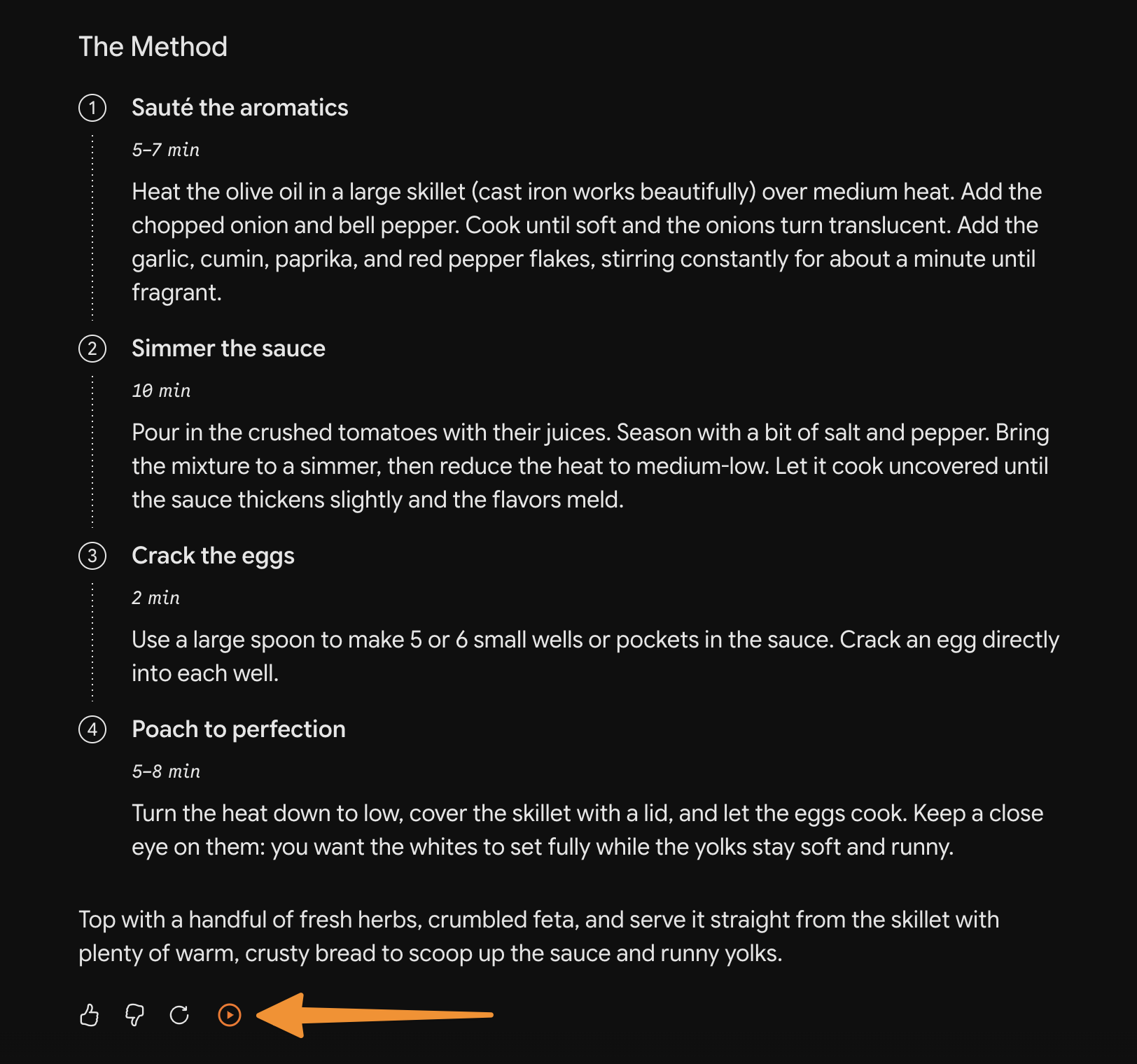
Gemini has a built-in listen option inside the response menu. ArticleAudio makes that workflow faster by adding a compact listen button beside Gemini's response actions, so the full answer is one click away.
It is useful for summaries, comparisons, research answers, rewrites, and explanations you want to review away from the screen.
Once ArticleAudio is installed, listening fits into your normal Gemini session.
01
Add the extension and open Gemini in your browser.
02
Wait for the response to finish generating so the full answer is available.
03
Use the ArticleAudio button beside the response actions.
04
Listen hands-free, or select a smaller section when you only need one part.
Start with the response play button, or use the selection tools when you only want one part of an answer.
01
Click the ArticleAudio button added beside Gemini response actions to hear that answer without selecting text.
Appears near your selected text when you highlight 30+ words
02
Select one paragraph, bullet list, or answer section and use the orange play button near the selection.
 shift +
  tab
tab 03
Use the keyboard shortcut when your hands are already on the keyboard during a Gemini session.
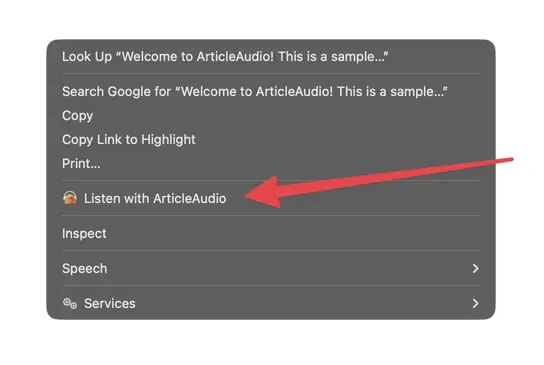
04
Use the browser context menu when you prefer a standard menu path for selected text.
Choose the listening workflow that fits the answer instead of reading every Gemini response the same way.
Turn detailed explanations, research summaries, and planning help into audio you can follow while walking, cooking, commuting, or resting your eyes.
Listening makes it easier to notice the steps in an explanation, catch caveats, and stay with a long answer that you might otherwise skim.
Use the same ArticleAudio controls for Gemini, other AI assistants, articles, newsletters, documents, and any other text-heavy page.
Wait until Gemini finishes generating so the play button includes the complete response.
Use the response button for the whole answer and select text when you only need one section.
For code-heavy answers, select the explanation around the code so it sounds more natural aloud.
Use the keyboard shortcut when you want to keep your hands on the keyboard.
Yes. ArticleAudio works on gemini.google.com. It can add a play button to individual Gemini responses, and you can also listen to selected text with Shift+Tab or the right-click menu.
No. ArticleAudio can add a small play button beside Gemini response actions, so the full response is one click away. Use text selection when you only want one paragraph, list, or section.
Yes. Select the sentence, paragraph, bullet list, or answer section you want to hear, then use the floating play button, Shift+Tab, or right-click menu.
Gemini has a built-in listen option, but it is tucked inside the response options menu. ArticleAudio adds a visible play button beside the response actions, plus selected-text listening, Shift+Tab, right-click access, and the same controls across other websites.
Yes. ArticleAudio is designed for long text. Wait until Gemini finishes generating, then use the response play button or select the part you want to hear.
It is best to wait until Gemini finishes generating. That way the response button includes the complete answer.
The free tier includes 1,000 words. For unlimited listening to Gemini responses and all other content, our premium plan at $6/month is a great value.
Install ArticleAudio and transform how you consume content on the web
 Add to Edge
  Add to Firefox
  Add to Opera