 ArticleAudio
Read the full page aloud
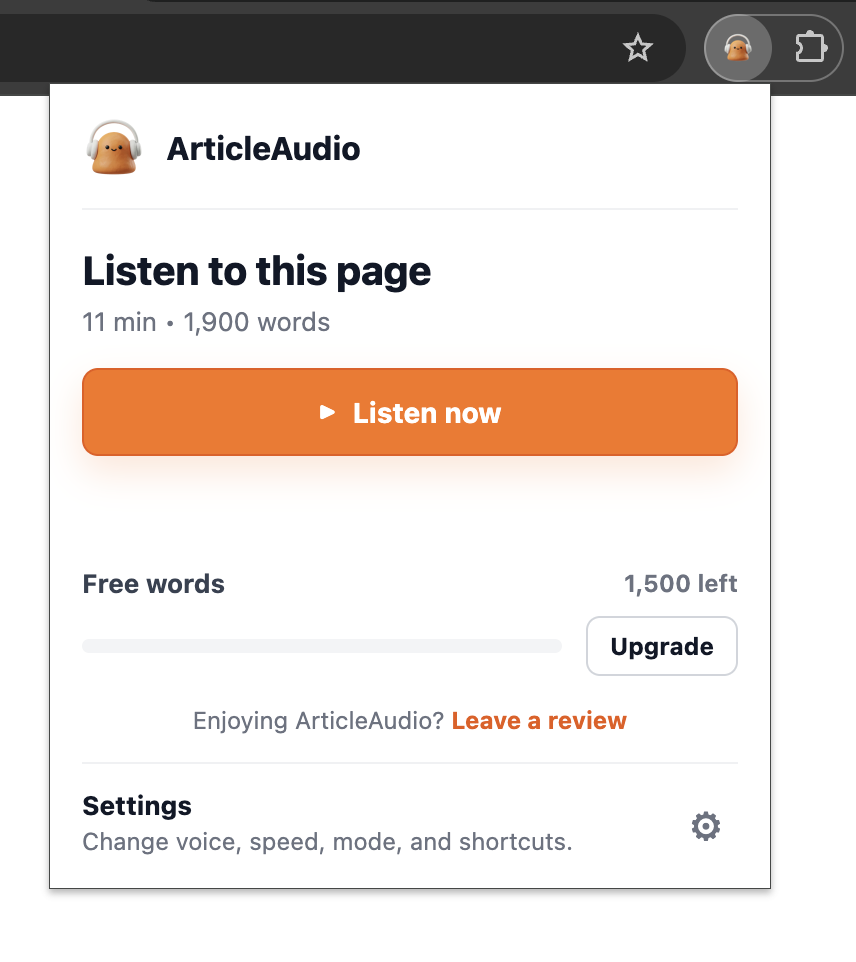
Open the ArticleAudio icon in your browser toolbar and click Listen to this page. This is the easiest starting point when you want to hear a chapter from the beginning without selecting its text.
AO3 text to speech
A new chapter is up, but you’ve had enough screen time. ArticleAudio reads Archive of Our Own fanfiction aloud with natural-sounding voices. Listen to the full page or select just the scene you want to hear.
 Add ArticleAudio to Chrome
 1,000 words free. No credit card required.
English · French · Spanish · Portuguese
To listen to AO3 fanfiction with ArticleAudio, install the desktop browser extension, open a chapter, and choose Listen to this page from the extension popup. To hear only a scene or paragraph, select the text and click the orange play button. ArticleAudio supports English, French, Spanish, and Portuguese read-aloud.
AO3 does not have a native text-to-speech button for written works. If you want to listen to a fic, you can use a browser read-aloud tool or find a human-recorded version, known as podfic.
ArticleAudio gives you a way to hear the story that’s already open in your browser. You don’t need to wait for someone to record it or copy each chapter into a separate text-to-speech app. Start with a chapter, then keep listening while cooking, doing chores, or resting your eyes.
Add ArticleAudio to Chrome, Microsoft Edge, or Firefox on your computer. Open the AO3 work you want to hear and navigate to a chapter.
Click the ArticleAudio icon in your browser toolbar for full-page listening, or highlight a passage to listen to a smaller section.
Click “Listen to this page” in the popup, or click the orange play button beside your selected text. Pause when you need a break and adjust playback speed to suit the story.
Open the ArticleAudio icon in your browser toolbar and click Listen to this page. This is the easiest starting point when you want to hear a chapter from the beginning without selecting its text.
Want to hear one scene again, pick up halfway through a chapter, or leave out an author’s note? Highlight only the story text you want to hear, then start playback using any of these methods:
Selected-text listening gives you control over where the narration begins. It’s also a useful fallback if full-page listening includes a summary, notes, or other text you didn’t want to hear.
Start with a single chapter so you can check the voice and the text being read. AO3 pages can include tags, summaries, author’s notes, and comments alongside the story. If you hear extra material, select the chapter’s prose and listen to that selection instead.
When you finish a chapter, open the next one and start listening again. Full-page playback reads the page you have open; it doesn’t automatically follow the next-chapter link or queue other works in a series.
For a longer listening session, check the word count and your available allowance before starting. The free 1,000 words are useful for trying a passage; a long fic will often need a premium plan. Premium Monthly costs $6/month.
Your listening list doesn’t have to be English-only. ArticleAudio supports English, French, Spanish, and Portuguese, so you can listen to a fic in its original language. The extension detects the language of the text and uses supported speech voices for playback.
If you’re reading in a language you’re learning, follow the text while listening and slow playback down for unfamiliar passages. This is read-aloud, rather than translation: a Spanish story is spoken in Spanish. Character names and invented words may sound different from the way you pronounce them.
Podfic is a recording made by a human reader. It can bring a performer’s pacing, emotion, and character voices to a story. If you want that experience, browse AO3’s Podfic tag or look for an audio link on the work.
Text-to-speech generates a spoken reading of the written text. It’s useful when the fic you want has no recording, when a chapter has just been posted, or when you only want to hear a particular passage. ArticleAudio is an independent browser extension and is not affiliated with AO3.
AO3 does not have a built-in text-to-speech feature that reads written fanfiction aloud. Some works have human-recorded audio versions called podfic. To listen to a written chapter, use a browser read-aloud tool such as ArticleAudio.
Install ArticleAudio in your desktop browser and open an AO3 chapter. Click the extension icon and choose “Listen to this page” for full-page listening. For a specific passage, select the text and click the orange play button, press Shift+Tab, or use the ArticleAudio right-click option.
Yes. Select a scene, paragraph, or section of the story and start listening to that selection. This also lets you leave out tags, summaries, author’s notes, and comments without relying on full-page extraction.
Yes. ArticleAudio supports English, French, Spanish, and Portuguese text-to-speech. It detects the language of the text and reads it in that language. It does not translate a French, Spanish, or Portuguese fic into English.
Open the next chapter on AO3 and start listening again. Full-page listening reads the page you have opened; it does not automatically follow chapter links or queue a series.
ArticleAudio includes 1,000 free words with no credit card required. Try a passage or a short chapter first. Longer fics may exceed the free allowance. Premium Monthly costs $6/month; see the pricing page for all current plans.
This guide covers ArticleAudio’s desktop browser extension. For mobile listening, look for your device’s accessibility speech tools or an ebook reader with text-to-speech. Those options have their own voices, controls, and compatibility.
Open a fic, choose a passage, and hear how it sounds. You get 1,000 words to try ArticleAudio for free.
Add ArticleAudio to Chrome More listening guides: Browse supported sites · How to turn articles into audio · Read Claude responses aloud
Updated · ArticleAudio