 ArticleAudio
 Add to Chrome - Try for Free
If you regularly save articles to read later and then never quite get back to them, audio can help. Turning an article into audio lets you listen while walking, commuting, cleaning, cooking, or resting your eyes.
The best setup depends on where you read. Some people need a quick browser button for web pages. Others want full playback controls for long essays, newsletters, documentation, or research pages. The goal is the same: make written content easy to listen to without breaking your reading flow.
What it means to turn an article into audio
Turning an article into audio means using text-to-speech to read the article aloud with a synthetic voice. Modern tools can sound much more natural than older screen readers, especially for long-form writing where pacing and voice quality matter.
For most readers, the useful version is not a studio-produced podcast. It is an on-demand audio layer over the pages you already read: news articles, essays, newsletters, blog posts, documentation, or saved research.
The best ways to do it
Use a browser extension
A browser extension is usually the fastest option for online articles because it works where the article already lives. Open the page, use the extension popup or page controls, and the full article can become listenable without copying anything into another app.
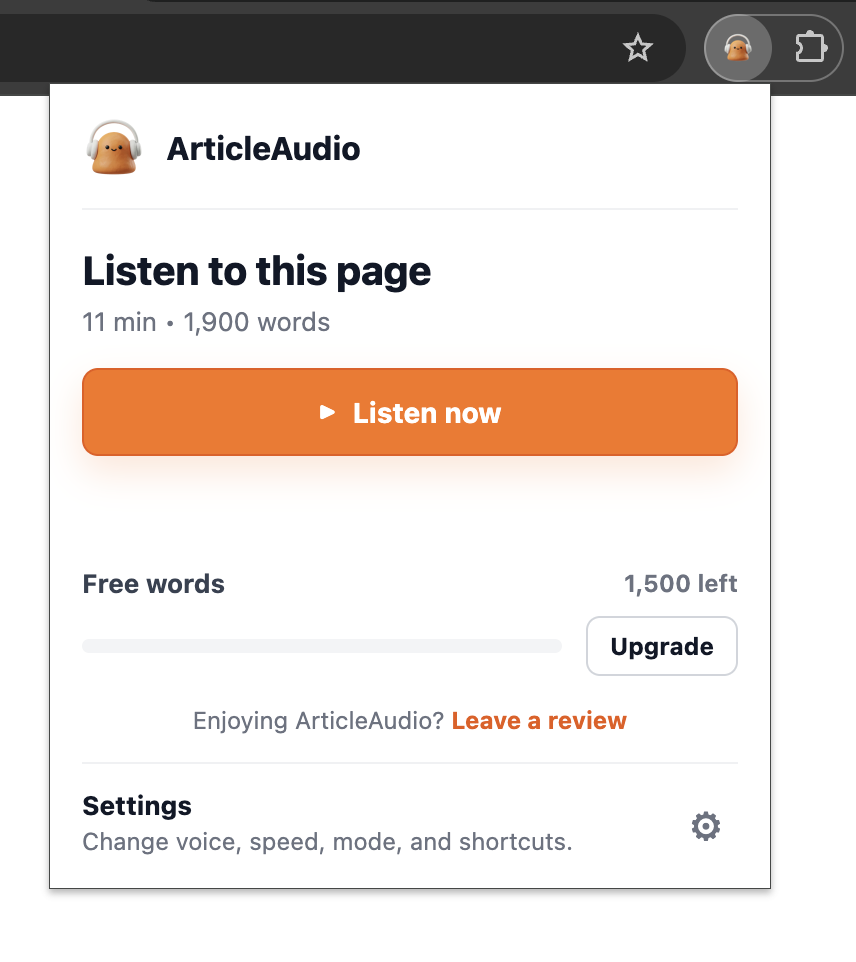
This is the workflow ArticleAudio is built for. Install the extension, open an article, listen to the whole page, or select a specific passage when you only need one section. The free tier includes 1,000 words so you can try it on real articles before upgrading.
Full-page playback vs selected passages
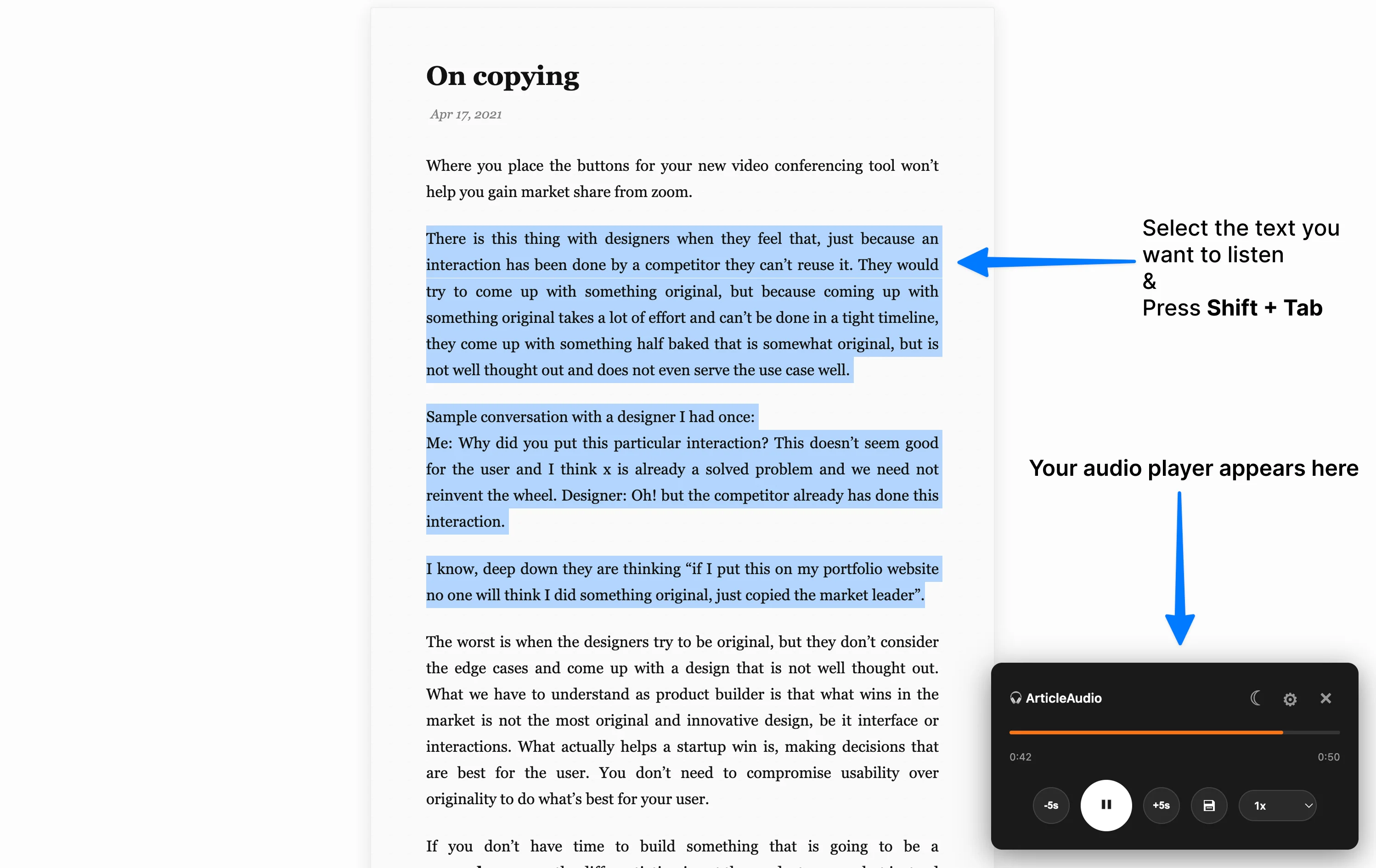
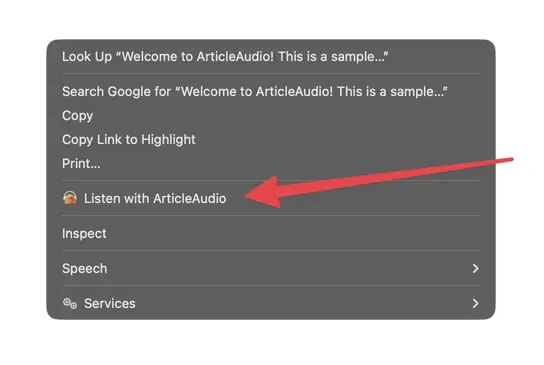
The best article-to-audio tools support both modes. Whole-page playback is best when you want to listen through an essay, newsletter, or guide from start to finish. Selected-text playback is better when you only need one paragraph, quote, or section.
| Mode | Best for | Why it helps |
|---|---|---|
| Full page | Long articles, newsletters, explainers, research pages | Starts the whole reading session without manually selecting every section. |
| Selected passage | Definitions, quotes, confusing paragraphs, quick review | Lets you hear just the part you are working on. |
| Player controls | Dense or long pieces | Pause, replay, change speed, and return to the page when you need visual detail. |
Use built-in read-aloud tools
Some browsers, operating systems, and reading apps include basic read-aloud features. These can be useful for accessibility and quick checks, especially if you only need occasional narration.
The tradeoff is control. Built-in tools often have fewer natural voice choices, weaker article-specific workflows, or less convenient controls for switching between whole-page listening and selected passages.
Use copy-paste text-to-speech tools
Standalone text-to-speech sites and apps can work well when you already have clean text. Paste the article, choose a voice, and generate audio.
This is more manual for everyday reading, though. If your real habit is browsing long web pages, a browser-first workflow is usually smoother than copying article text between tabs.
What to look for in an article audio tool
- Natural voices: Long articles are easier to finish when the voice does not feel robotic.
- Whole-page playback: You should be able to start listening to the article without manually selecting every section.
- Selection control: When you only need one paragraph or section, selected-text playback should still be available.
- Fast start: Playback should begin quickly enough that audio feels like part of reading.
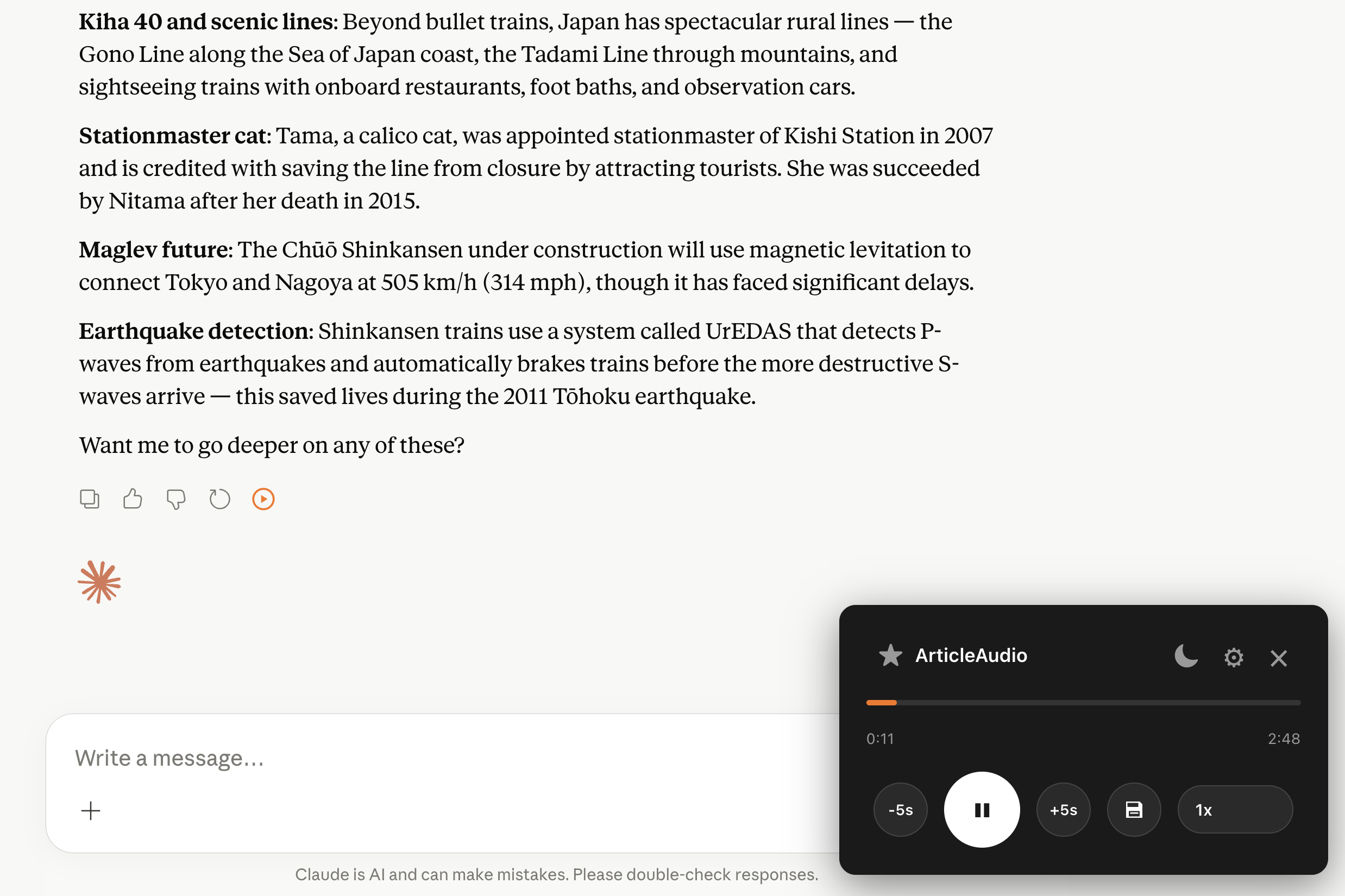
- Playback controls: Speed, pause, seek, and download controls matter more for long pieces.
- Works across sites: The tool should handle news sites, blogs, newsletters, and documentation without a separate setup for each one.
A simple ArticleAudio workflow
- Install ArticleAudio from the Chrome Web Store.
- Open an article you want to listen to.
- Use the extension popup to listen to the page, or select a section when you want a smaller passage.
- Start playback and adjust speed or mode depending on the length of the article.
If you mostly read on specific sites, you can also use the dedicated guides for Medium, Substack, and Wikipedia. For study-specific use cases, see text to speech for students and text to speech for ADHD.
Frequently asked questions
How can I turn an online article into audio?
Use a text-to-speech browser extension, a built-in read-aloud feature, or a copy-and-paste text-to-speech tool. A browser extension is usually the fastest option for web articles because it can read the page where it is already open.
Can Chrome read an article aloud?
Yes. A Chrome text-to-speech extension such as ArticleAudio can read a full article aloud in the browser. You can start whole-page playback from the extension or select a smaller passage when you only want to hear one section.
Do I need to copy and paste an article to listen to it?
Not if you use a browser extension that supports full-page playback. Open the article and start listening on the page. Copy-and-paste tools are still useful when you already have clean text or want to edit it before generating audio.
Can I listen to only part of an article?
Yes. Select the sentence, paragraph, or section you want to hear and start text-to-speech for that selection. This is useful for definitions, quotations, dense passages, or any section that needs a closer review.
What should I look for in an article-to-audio tool?
Look for natural voices, whole-page and selected-text playback, a fast start, useful controls for speed and seeking, and support for the sites where you read. Long articles are easier to finish when the listening workflow stays inside the browser.
 Add to Edge
  Add to Firefox
  Add to Opera