 Add to Chrome - Try for Free
Text-to-speech can turn student reading into something you can listen to. Instead of staring at every article, source, study guide, or long web page, you can hear the material while reviewing notes, walking across campus, commuting, or taking a screen break.
It is not a replacement for active studying. The best use is practical: use audio to get through assigned reading, review dense passages, catch mistakes in your own writing, and revisit material when your eyes are tired.
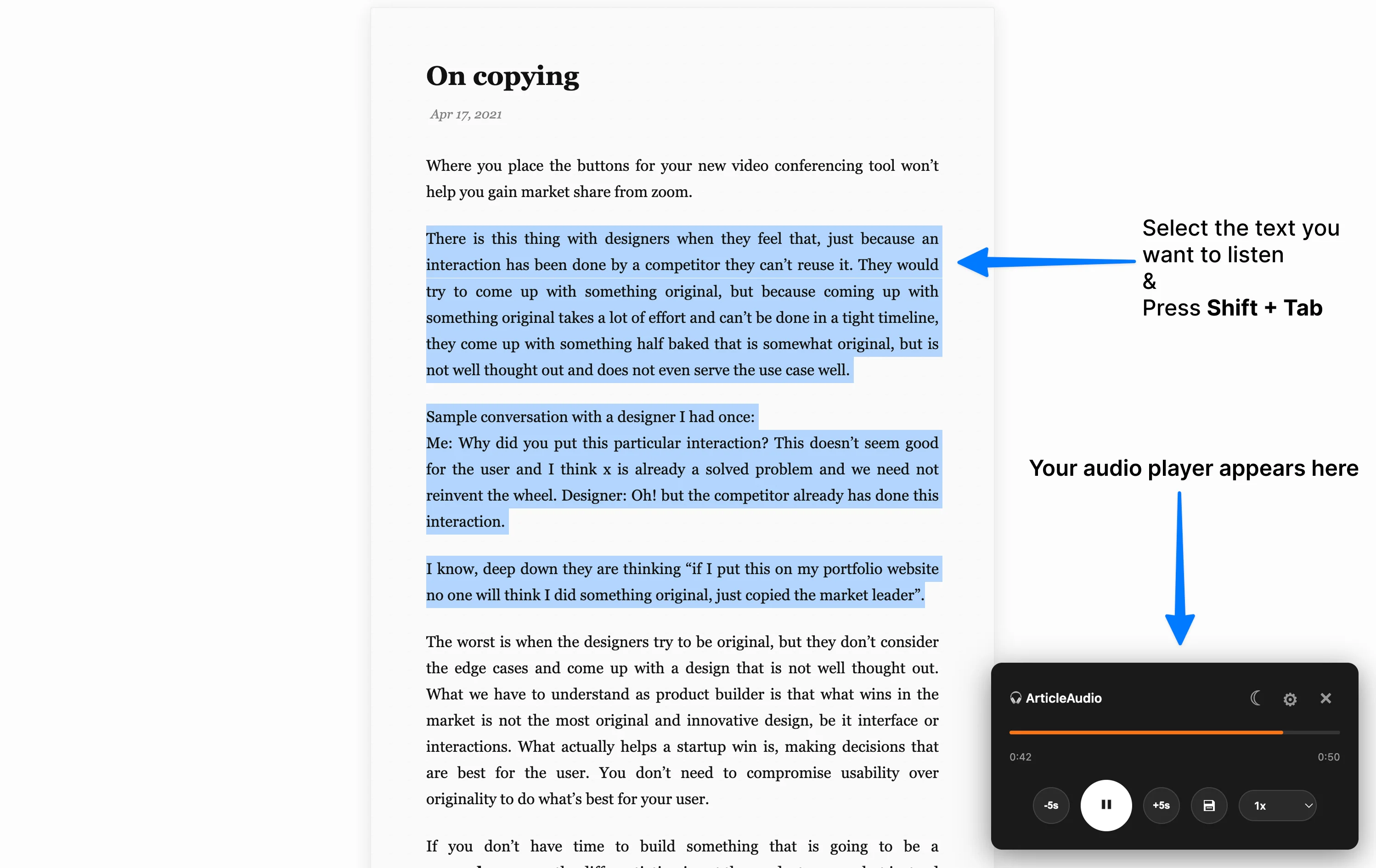
For long readings, full-page playback can give you a first pass without copying text between tools. For harder sections, selected-text playback lets you slow down and listen to one paragraph before taking notes.
Why students use text-to-speech
Student reading is rarely one neat chapter at a time. It is tabs, course pages, research links, notes, and articles you mean to come back to later. Text-to-speech helps by turning some of that reading load into audio.
- More flexible review: Listen while walking, commuting, cleaning, or resting your eyes.
- Better second-pass reading: Hearing a passage can reveal structure, repetition, or confusing sentences you missed visually.
- Less screen fatigue: Audio gives you another way to process material after a long day of reading from a laptop.
- Useful for drafts: Listening to your own essay can make awkward phrasing easier to catch.
Where TTS fits in a student reading stack
Students do not only read "articles." A week of school reading can include background research, course pages, Google Docs, newsletters, lecture notes, and drafts. The strongest text-to-speech setup is one that works across that mix instead of only handling one app.
Common study sources

Background reading
Listen to encyclopedia pages and explainers before deciding what needs closer notes.

Essays and long articles
Turn assigned web reading into audio for a first pass or review session.

Drafts and study guides
Hear your own writing aloud to catch awkward sentences and missing transitions.

Notes and research queues
Review saved material without copying everything into a separate audio app.
Student workflows that work well with audio
Before class preview
Use text-to-speech for a quick preview before lecture or discussion. Listen for the main argument, names, dates, terms, and places where you get lost. Then go back visually and mark the sections that need closer reading.
This works especially well for humanities and social science readings where the first challenge is understanding the shape of the argument before annotating it.
Research triage
Research days produce too many tabs. Instead of reading every source deeply, listen to introductions, summaries, abstracts, and conclusion sections first. Keep only the sources that actually answer your question.
Research triage loop
- Open the source. Start with the intro, abstract, or summary instead of the full page.
- Listen for relevance. Ask whether the source supports your claim, gives context, or belongs in the discard pile.
- Capture the citation. If it matters, pause and save the link, author, date, and why you kept it.
- Return visually. Read the important paragraphs closely before quoting or paraphrasing.
Essay draft review
Listening to your own work is different from proofreading silently. Your ear will often catch repeated phrases, missing context, and sentences that looked fine on screen but sound too long.
For draft review, use audio after you have a complete section. Pause when a sentence sounds off, fix it, then continue. It is a practical editing pass, not a substitute for checking citations or formatting.
When to listen and when to read visually
Audio is useful, but it should not flatten every assignment into the same mode. A good student workflow switches between listening and visual reading depending on what the task needs.
| Task | Use audio for | Read visually for |
|---|---|---|
| Assigned article | First pass, review, screen break | Annotation, quotes, citations |
| Research source | Relevance check and summary review | Evidence quality and exact claims |
| Lecture notes | Exam review and gap spotting | Definitions, diagrams, formulas |
| Your own draft | Flow, repetition, awkward phrasing | Grammar, citations, formatting |
- Choose one reading goal: preview, review, proofread, or deep study.
- Choose the right scope: use full-page playback for a first pass, then select a section when you need closer review.
- Keep a notes window nearby: pause when you hear something worth saving.
- Change modes for long readings: use fuller playback controls when you need pause, seek, speed, or replay.
- Do one visual pass when it matters: formulas, tables, citations, and diagrams still need eyes on the page.
What to look for in a student TTS tool
- Works across the web: Students read on course sites, blogs, docs, newsletters, and search results.
- Natural voices: Robotic audio gets tiring quickly during long study sessions.
- Full-page and selected-text playback: You should be able to listen to an entire reading or narrow the session to one paragraph.
- Simple controls: Pause, replay, speed, and seek controls matter when you are reviewing material.
- Low friction: The fewer copy-paste steps, the more likely you are to use it consistently.
Try ArticleAudio for study reading
ArticleAudio is built for students who read across the web. Install the extension, open an article or study page, listen to the full page from the popup, or select a specific passage when you want a smaller study session.
You get 1,500 words free, no credit card required. Use it on a real reading assignment and see whether listening helps you get through the material with less friction.
For more general workflows, read how to turn articles into audio. If focus and task-starting are the bigger challenge, the ADHD text-to-speech guide covers smaller reading loops. For specific sites, see the guides for Wikipedia and Medium.
 Add to Edge